
See what changed on every sheet.
Primepoint compares each new revision set to the last, explains what changed on every sheet in plain language, and ranks sheets by how much changed.
Read the changes and take action quickly instead of flipping through side-to-side sets for hours.
Bulletin 1 on a real project: 187 sheets and 1,843 details compared, then each changed sheet written out.
A write-up of every sheet
What changed on each sheet, in plain language: new, modified, and deleted details, plus the schedule and note rows that changed, before and after. Pull up the overlay with one click.
Sorted by how much changed
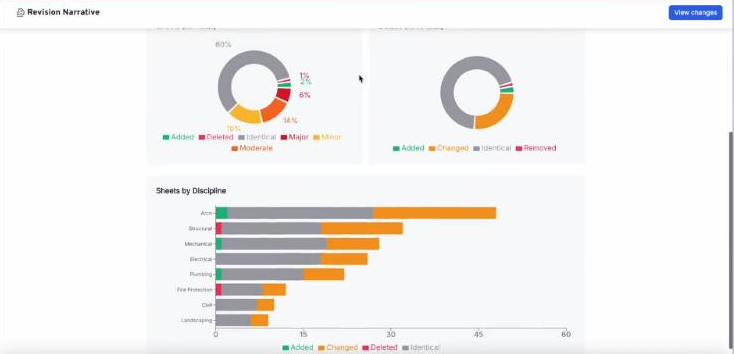
Every sheet is marked identical, minor, moderate, or major, with charts by discipline and by area, so the major changes get read first.
Marked for review, then exported
Mark each change for review with the design team, the owner, or a sub, or as in budget, add to budget, or a VE opportunity. Export the package as a PDF, with an overlay page for each sheet.
Revisions, handled
See the whole revision at a glance
Charts show how much of the set changed and where, by change level and by discipline, so you know where to spend your review time before you open a sheet.
- Platform
- Jump from any change to its overlay
- Every change linked to the details, specs, and RFIs it touches
Every change, tied to the rest of the job.
Each sheet is linked to its details, its schedules, and the ASIs and bulletins that touched it. Ask Marvin what a bulletin changed and get the answer from the comparison, with the sheets cited.
LINKED ON EVERY PROJECT
What did Bulletin 1 change on the casework?
Three sheets changed. A-632A adds a cast countertop floating edge detail and revises the trash and dish drop cases. Two other sheets only update notes.
How it works
The new set comes in
From Procore or Autodesk Forma, or uploaded. Pick the two revisions to compare: the last issue and the new one.
Primepoint compares every sheet
Each sheet is overlaid on its last version, every detail is matched, and schedules and notes are compared row by row. Then the changes are written up.
Your PE reviews and assigns
Read the major changes first, mark each one for whoever owns it, and export the narrative package as a PDF.
A tool like Primepoint has allowed our senior staff to focus on multiple things at once.
 Dana ErdmanVP of Technology & Innovation, Bulley & Andrews

Questions
Which sets can I compare?
Pick any two revisions on the project, usually the last issue and the new one. New sets sync from Procore or Autodesk Forma, or you upload them.
How are changes ranked?
Every sheet is marked identical, minor, moderate, or major based on how much changed, with charts by discipline and by area.
Can I export the narrative?
Yes. Export the package as a PDF, with the written changes and an overlay page for each sheet.
Explore more of the platform
Auto Overlay
Compare multiple sheets across disciplines to identify discrepancies instantly.
Learn moreConnected Documents
Every callout, tag, and schedule row linked to its source.
Learn moreConstructability Review
Conflicts and gaps found before they reach the field.
Learn moreMarvin
Your project assistant, with every source one click away.
Learn more